Showing posts with label SSRS. Show all posts

Thursday, 10 March 2016

How to debugg the RDP Class in SSRS Reports on Dynamics AX2012

Hope every one is doing good.It has been long time since I shared the things into my blog.I am little bit busy with my current project and learning new things about SSRS,AIF and MVC.

Today I would like to share a very interesting and simple concept on SSRS,i.e

Debugging the SSRS RDP Class in Dynamics AX2012.

1) Class declaration of RDP class ,we need to replace the code like extends SrsReportDataProviderPreProcess instead of SrsReportDataProviderBase 

2) Temp table properties should be
     (a) Table type :Regular 
     (b)  Created by : Yes
     (c) Created Transaction Id : Yes
Third step is not a mandatory.
3) In process report of the class add this line in Temporarytablename.setConnection(this.parmUserConnection());

How to debugg the RDP Class in SSRS Reports on Dynamics AX2012

Hope every one is doing good.It has been long time since I shared the things into my blog.I am little bit busy with my current project and learning new things about SSRS,AIF and MVC.

Today I would like to share a very interesting and simple concept on SSRS,i.e

Debugging the SSRS RDP Class in Dynamics AX2012.

1) Class declaration of RDP class ,we need to replace the code like extends SrsReportDataProviderPreProcess instead of SrsReportDataProviderBase 

2) Temp table properties should be
     (a) Table type :Regular 
     (b)  Created by : Yes
     (c) Created Transaction Id : Yes
Third step is not a mandatory.
3) In process report of the class add this line in Temporarytablename.setConnection(this.parmUserConnection());

How to Display SSRS Report into Enterprise Portal in Dynamica Axapta 2012 R2

How to Display SSRS Report into Enterprise Portal in Dynamica Axapta 2012 R2 .Its very Easy.

Please see the below steps.

Step1:

After Creating the SSRS in AX,we need to add that into output menuItem with proper label.
Here label is very important because it will connect between Ep and AX.

Step 2:

\Go to your EP page selct the place where you need to display the Report.There we need to add the web Part click on that we can see the option like "Dynamics Report Server Report".

Step 3:

It will display all the outPut MenuItems,Here we can see the label names for the menuitems. Select your menuitems .thats it.

How to Display SSRS Report into Enterprise Portal in Dynamica Axapta 2012 R2

How to Display SSRS Report into Enterprise Portal in Dynamica Axapta 2012 R2 .Its very Easy.

Please see the below steps.

Step1:

After Creating the SSRS in AX,we need to add that into output menuItem with proper label.
Here label is very important because it will connect between Ep and AX.

Step 2:

\Go to your EP page selct the place where you need to display the Report.There we need to add the web Part click on that we can see the option like "Dynamics Report Server Report".

Step 3:

It will display all the outPut MenuItems,Here we can see the label names for the menuitems. Select your menuitems .thats it.

How to Convert SSRS Report into PDF By using X++.

Here is the code to convert SSRS report into PDF.
But Before converting the report to PDF we need to send the parameter values to Contract class after that we need to convert the report.

//For Converting Report to PDF
public void makeCommissionReport()
{
    Args                            args;
    SrsReportRunInterface           reportRun;
    SrsReportDataContract           contract;
    SrsReportRunController          controller;
    CommByAgencyContract            commContract;
    SRSPrintDestinationSettings     printSettings;
    SRSReportExecutionInfo          executionInfo;


    SrsReportRunImpl                srsReportRun;

    ReportName                      reportname =  "CommissionReportAgency.report";
    filenameType    = '.pdf';
    generatedReportFilePath = filePath + file + filenameType;
    args = new Args();
   /* args.record(record);
    retailStoretable = args.record(record);
    generatedDocument = false;
   */
    /*select custTable where custTable.AccountNum == retailStoretable.DefaultCustAccount;
    storenum = retailStoretable.StoreNumber;
    num      = custTable.InvoiceAccount;
    */
    controller = new SrsReportRunController();
    controller.parmReportName(reportname);
    commContract = controller.parmReportContract().parmRdpContract();
    commContract.parmfromdate(dat);
    commContract.parmTodate(endDate);
    commContract.ReciD(recid);
    controller.parmArgs(args);
    srsReportRun = controller.parmReportRun() as SrsReportRunImpl;
    controller.parmReportRun(srsReportRun);

    controller.parmReportContract().parmPrintSettings().printMediumType(SRSPrintMediumType::File);
    controller.parmReportContract().parmPrintSettings().overwriteFile(true);
    controller.parmReportContract().parmPrintSettings().fileFormat(SRSReportFileFormat::PDF);
    controller.parmReportContract().parmPrintSettings().fileName(generatedReportFilePath);
    controller.runReport();
    //generatedDocument = true;
}

How to Convert SSRS Report into PDF By using X++.

Here is the code to convert SSRS report into PDF.
But Before converting the report to PDF we need to send the parameter values to Contract class after that we need to convert the report.

//For Converting Report to PDF
public void makeCommissionReport()
{
    Args                            args;
    SrsReportRunInterface           reportRun;
    SrsReportDataContract           contract;
    SrsReportRunController          controller;
    CommByAgencyContract            commContract;
    SRSPrintDestinationSettings     printSettings;
    SRSReportExecutionInfo          executionInfo;


    SrsReportRunImpl                srsReportRun;

    ReportName                      reportname =  "CommissionReportAgency.report";
    filenameType    = '.pdf';
    generatedReportFilePath = filePath + file + filenameType;
    args = new Args();
   /* args.record(record);
    retailStoretable = args.record(record);
    generatedDocument = false;
   */
    /*select custTable where custTable.AccountNum == retailStoretable.DefaultCustAccount;
    storenum = retailStoretable.StoreNumber;
    num      = custTable.InvoiceAccount;
    */
    controller = new SrsReportRunController();
    controller.parmReportName(reportname);
    commContract = controller.parmReportContract().parmRdpContract();
    commContract.parmfromdate(dat);
    commContract.parmTodate(endDate);
    commContract.ReciD(recid);
    controller.parmArgs(args);
    srsReportRun = controller.parmReportRun() as SrsReportRunImpl;
    controller.parmReportRun(srsReportRun);

    controller.parmReportContract().parmPrintSettings().printMediumType(SRSPrintMediumType::File);
    controller.parmReportContract().parmPrintSettings().overwriteFile(true);
    controller.parmReportContract().parmPrintSettings().fileFormat(SRSReportFileFormat::PDF);
    controller.parmReportContract().parmPrintSettings().fileName(generatedReportFilePath);
    controller.runReport();
    //generatedDocument = true;
}

Thursday, 26 November 2015

AX DB Restore Scripts - Moving AX DB from one server to another server


Following SQL script is very useful while moving AX DB from one server to other server. Thanks to http://www.exploreax.com.

Declare @AOS varchar(30) = '[AOSID]' --must be in the format '01@SEVERNAME'
---Reporting Services---
Declare @REPORTINSTANCE varchar(50) = 'AX'
Declare @REPORTMANAGERURL varchar(100) = 'http://[DESTINATIONSERVERNAME]/Reports_AX'
Declare @REPORTSERVERURL varchar(100) = 'http://[DESTINATIONSERVERNAME]/ReportServer_AX'
Declare @REPORTCONFIGURATIONID varchar(100) = '[UNIQUECONFIGID]'
Declare @REPORTSERVERID varchar(15) = '[DESTINATIONSERVERNAME]'
Declare @REPORTFOLDER varchar(20) = 'DynamicsAX'
Declare @REPORTDESCRIPTION varchar(30) = 'Dev SSRS';

---SSAS Services---
Declare @SSASSERVERNAME varchar(20) = '[YOURSERVERNAME]\AX'
Declare @SSASDESCRIPTION varchar(30) = 'Dev SSAS'; -- Description of the server configuration

---BC Proxy Details ---
Declare @BCPSID varchar(50) = '[BCPROXY_SID]'
Declare @BCPDOMAIN varchar(50) = '[yourdomain]'
Declare @BCPALIAS varchar(50) = '[bcproxyalias]'
---Service Accounts ---
Declare @WFEXECUTIONACCOUNT varchar(20) = 'wfexc'
Declare @PROJSYNCACCOUNT varchar(20) = 'syncex'
---Help Server URL---
Declare @helpserver varchar(200) = 'http://[YOURSERVER]/DynamicsAX6HelpServer/HelpService.svc'

---Outgoing Email Settings---
Declare @SMTP_SERVER varchar(100) = 'smtp.mydomain.com' --Your SMTP Server
Declare @SMTP_PORT int = 25
---DMF Folder Settings ---
Declare @DMFFolder varchar(100) = '\\[YOUR FILE SERVER]\AX import\ '

---Email Template Settings---
Declare @EMAIL_TEMPLATE_NAME varchar(50) = 'Dynamics AX Workflow QA - TESTING'
Declare @EMAIL_TEMPLATE_ADDRESS varchar(50) = 'workflowqa@mydomain.com'
---Email Address Clearing Settings---
DECLARE @ExclUserTable TABLE (id varchar(10))
insert into @ExclUserTable values ('userid1'), ('userid2')

--List of users separated by | to keep enabled, while disabling all others
Declare @ENABLE_USERS NVarchar(max) = '|Admin|TIM|'
--List of users separated by | to disable, while keeping all the rest enabled all others
--Declare @DISABLE_USERS NVarchar(max) = '|BOB|JANE|'

--*****BEGIN UPDATES*******---

---Update AOS Config---
delete from SYSSERVERCONFIG where RecId not in (select min(recId) from SYSSERVERCONFIG)
update SYSSERVERCONFIG set serverid=@AOS, ENABLEBATCH=1
where serverid != @AOS -- Optional if you want to see the "affected row count" after execution.

---Update Batch Servers---
delete from BATCHSERVERGROUP where RecId not in (select min(recId) from BATCHSERVERGROUP group by GROUPID)
update BATCHSERVERGROUP set SERVERID=@AOS
where serverid != @AOS -- Optional to see "affected row count"
update batchjob set batchjob.status=4 where batchjob.CAPTION = '[BATCHJOBNAME]'
update batch set batch.STATUS=4 from batch inner join BATCHJOB on BATCHJOBID=BATCHJOB.RECID AND batchjob.CAPTION = '[BATCHJOBNAME]'

---Update Reporting Services---
delete from SRSSERVERS where RecId not in (select min(recId) from SRSSERVERS)
update SRSSERVERS set
    SERVERID=@REPORTSERVERID,
    SERVERURL=@REPORTSERVERURL,
    AXAPTAREPORTFOLDER=@REPORTFOLDER,
    REPORTMANAGERURL=@REPORTMANAGERURL,
    SERVERINSTANCE=@REPORTINSTANCE,
    AOSID=@AOS,
    CONFIGURATIONID=@REPORTCONFIGURATIONID,
    DESCRIPTION=@REPORTDESCRIPTION
where SERVERID != @REPORTSERVERID -- Optional if you want to see the "affected row count" after execution.

---Update SSAS Services---
delete from BIAnalysisServer where RecId not in (select min(recId) from BIAnalysisServer)
update BIAnalysisServer set
    SERVERNAME=@SSASSERVERNAME,
    DESCRIPTION=@SSASDESCRIPTION,
ISDEFAULT = 1
WHERE SERVERNAME <> @SSASSERVERNAME -- Optional where clause if you want to see the "affected rows

---Set BCPRoxy Account---
update SYSBCPROXYUSERACCOUNT set SID=@BCPSID, NETWORKDOMAIN=@BCPDOMAIN, NETWORKALIAS= @BCPALIAS
where NETWORKALIAS != @BCPALIAS --optional to display affected rows.
---Set WF Execution Account---
update SYSWORKFLOWPARAMETERS set EXECUTIONUSERID=@WFEXECUTIONACCOUNT where EXECUTIONUSERID != @WFEXECUTIONACCOUNT
---Set Proj Sync Account---
update SYNCPARAMETERS set SYNCSERVICEUSER=@PROJSYNCACCOUNT where SyncServiceUser!= @PROJSYNCACCOUNT
---Set help server URL---
update SYSGLOBALCONFIGURATION set value=@helpserver where name='HelpServerLocation' and value != @helpserver

---Update Email Parameters---
Update SysEmailParameters set SMTPRELAYSERVERNAME = @SMTP_SERVER, @SMTP_PORT=@SMTP_PORT
---Update DMF Settings---
update DMFParameters set SHAREDFOLDERPATH = @DMFFolder
where SHAREDFOLDERPATH != @DMFFolder --Optional to see affected rows

---Set BCPRoxy Account---
update SYSBCPROXYUSERACCOUNT set SID=@BCPSID, NETWORKDOMAIN=@BCPDOMAIN, NETWORKALIAS= @BCPALIAS
where NETWORKALIAS != @BCPALIAS --optional to display affected rows.
---Set WF Execution Account---
update SYSWORKFLOWPARAMETERS set EXECUTIONUSERID=@WFEXECUTIONACCOUNT where EXECUTIONUSERID != @WFEXECUTIONACCOUNT
---Set Proj Sync Account---
update SYNCPARAMETERS set SYNCSERVICEUSER=@PROJSYNCACCOUNT where SyncServiceUser!= @PROJSYNCACCOUNT
---Set help server URL---
update SYSGLOBALCONFIGURATION set value=@helpserver where name='HelpServerLocation' and value != @helpserver

---Update Email Templates---
update SYSEMAILTABLE set SENDERADDR = @EMAIL_TEMPLATE_ADDRESS, SENDERNAME = @EMAIL_TEMPLATE_NAME where SENDERADDR!=@EMAIL_TEMPLATE_ADDRESS OR  SENDERNAME!=@EMAIL_TEMPLATE_NAME;
update SYSEMAILSYSTEMTABLE set SENDERADDR = @EMAIL_TEMPLATE_ADDRESS, SENDERNAME = @EMAIL_TEMPLATE_NAME where SENDERADDR!=@EMAIL_TEMPLATE_ADDRESS OR  SENDERNAME!=@EMAIL_TEMPLATE_NAME;
---Update User Email Addresses---
update sysuserinfo set sysuserinfo.EMAIL = '' where sysuserInfo.ID not in (select id from @ExclUserTable)

---Disable all users except for a specific set---
update userinfo set userinfo.enable=0 where  CharIndex('|'+ cast(ID as varchar) + '|' , @ENABLE_USERS) = 0
---Disable specific users---
---update userinfo set userinfo.enable=0 where  CharIndex('|'+ cast(ID as varchar) + '|' , @DISABLE_USERS) > 0

--Clean up server sessions
delete from SYSSERVERSESSIONS
--Clean up client sessions.
delete from SYSCLIENTSESSIONS

reference : http://www.exploreax.com/blog/blog/2015/10/13/ax-db-restore-scripts-full-script/

Monday, 23 November 2015

Filteration on Rownumber in SSRS

To do some operation on the basis of rownumber we can use the RowNumber function of the SSRS

=iif(RowNumber(Nothing) Mod 2,”Green”,”Yellow”).

on the above line it will fill the line color as green adn yellow on the basis of odd even linbes

=iif(RowNumber(Nothing) = 1,”Yes”,”No”).

above line will visible only first line

nothing will consider the outer most group for filteration

Friday, 20 November 2015


Dynamics AX CUBES, SSRS and SSAS

Open SQL Server Business Intelligence Development Studio from SQL server


Make a new project


In new  project  select  business  intelligence projects in project type and using Analysis Service Project Template make new project


In the solution Explorer make a new datasource as given in the above screen shot.
Datasource wizard will b open..click on the next button.


Clcikc new and specify the servername and the database name

Type server name and database name .and check the connection by clicking test connection and then press ok.


Select the inherit option and click on next button.


click on the finish button


.now in the solution explorer create new data source view as above.


 one wizard will b opened . click on the next button.


.no change and just click on the next button.


select the table of which you want data in cube.


clcik finish button .and your view will b generated automatically..


 now again go to the solution explorer and using right click on the cube folder make new cube as shown in the above screen shots…


 one wizard will b opened .click on the next button..
 

select the first option USE existing tables.


select the dimension which is showing in the above screen.


 select all measure which you want to show in cube and click on the next button.


.Select all the dimension table which you want to use and click on the next button..


click on the next button.


now in the solution explorer double click on the dimension for adding dimension from that dimension table.


 above screen will appear .


Now drag and drop the fileds which you want as a dimension from the dimension table


 now go to the project button and select the project name properties.


 now select the server name and then click the ok button.


 in the solution explorer select the project name .right click and then process the project.


one window will b open . click the run button without changing anything.


you will find the process succeeded message on the screen .then click on the close button.


now click on the cube and then right click on it and first process and then browse it..


here is the window where you can drag and drop the measures and dimension on the screen as you want. .measure should be drop on the red symbol place and dimension on the dimensions like X and Y


SSRS using Cubes


In BI tools open new project


Select server project wizard in BI projects


Click the next button


Enter the server name and select Microsoft sql server analysis service and click edit


Enter the server name again and select the cube name in the database name


Check if connection is succeeded or not and click ok


Now copy the connection string and save it in notepad file and click next


The query builder wizard will open , click on the query builder


Now you will find the different measures and dimensions, select that dimensions and measures which you want to show in the report and drag it in the report area


Copy the query in the notepad file and click next and finish wizard


Now goto new and select new project option


Select visual c# and then dynamics AX Reporting Project


The project will open now , in solution explorer right click on the project and select add new item


One window will open , select report data source from the window, in the properties of data source paste the saved connection string in the conncetion string field


Select the name of the project in the name field in the properties of the data source
 

Select the report from the project


In the report option select the dataset and add new dataset


In the properties of the dataset select the query field and paste the saved query from notepad file


In the dataset you will find the values as you can see in the screenshot


Goto the design and add autodesign


In the autodesign add one table or any design which you want to add


Drag the field from the dataset in to the table dnt drag the fields which are in the red box, that fields are for label purpose only.


Right click on the report and click on preview


Deploy on EP

Right click on the project name solution explorer and click on save to AOD


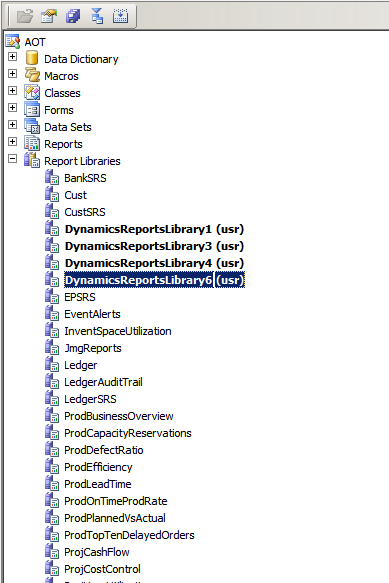
Open the AX and in report libraries u will find report which we deploy in BI.


We can edit report by right click on report name and thn select Edit in Visual Studio


After doing changes in visual studio click on the restore in AOT


Now in menuitem add one menu item


In the properties of menuitem set the properties Name , label , objectype, object and runon as below

Object type   =    SQLReportLibraryReport

Run On    =   Called from


Goto the administration.


In the internet ->EP click web site..


U will get administration of web sites , in this click on view in browser..


In the browser home page will appear.


Enter edit page in the site action ..


U will find add a web part option on the screen ..click on add a web part..


Click on the Dynamics Report Server Report..


Click on the given arrow of Dynamics Report Server Report  and u will find one window in that click on Modify shared web part..


Now u will find one window in that enter report name

The report will come on EP