Lets have a look at creating a form. This is probably a little more exciting than the previous posts. As this is totally new to AX7.
Right click and Add > New
Select the Form object from the AX7 Artifacts

Initially it will show the pattern as unspecified. This is something we should always set if we expect our form to work across platforms (browsers). Otherwise we can set it to custom and it is free form. Which is a bit messy and unsupported.
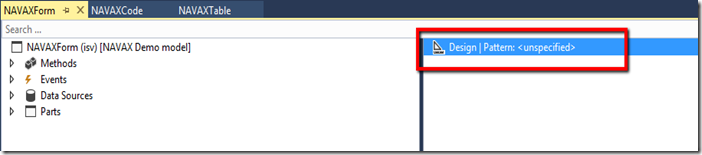
Right click the Design and apply a pattern.
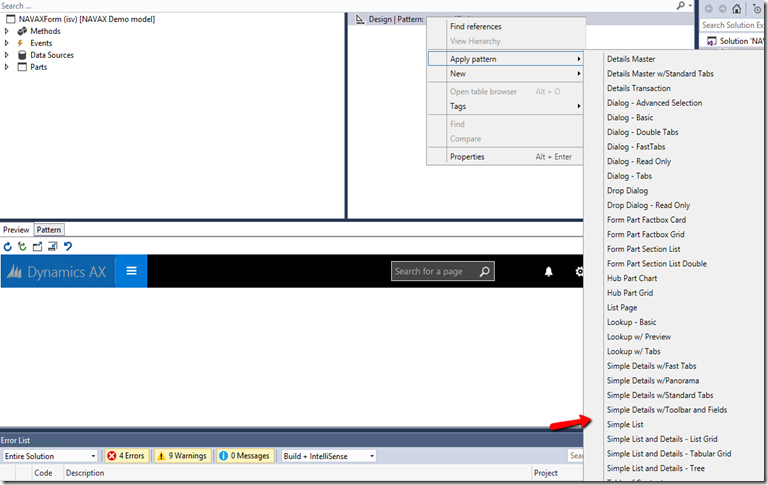
Once you have applied a pattern the bottom part of the form will show you the expected pattern. Now it is a matter of filling it up with the required control types.
Lets right click New > control we want to add.
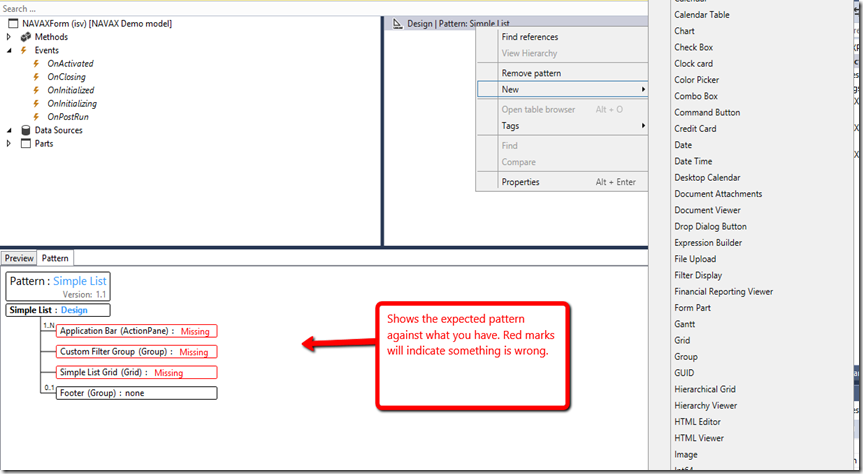
Once you have added all your required controls.
Drag the table from the AOT to the Data Sources node. It should look something like this.
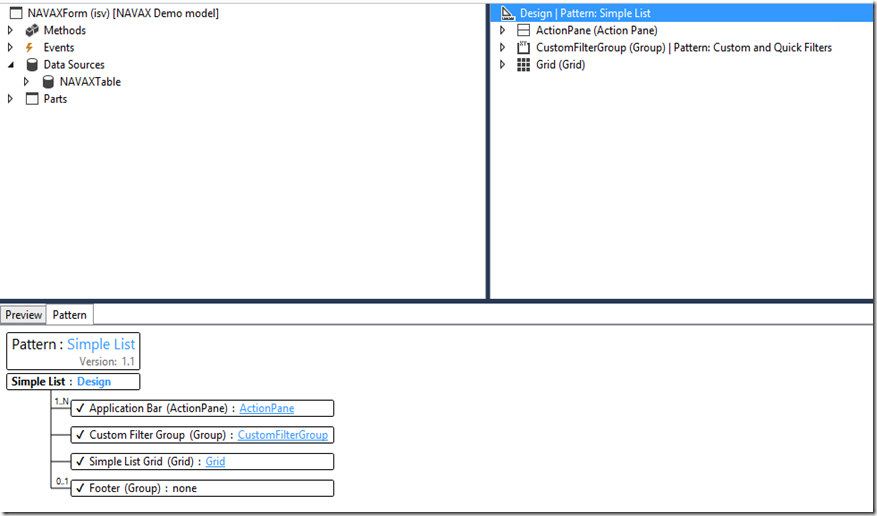

Now you can preview by clicking the tab.
Build your VS project. There should be no errors.
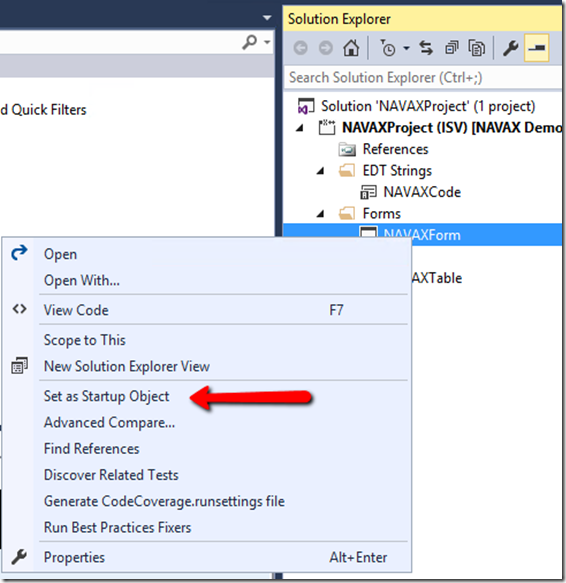
If you want to debug and run in a browser. Make sure to set the object as your Start Object.
\
Right click and Add > New
Select the Form object from the AX7 Artifacts

Initially it will show the pattern as unspecified. This is something we should always set if we expect our form to work across platforms (browsers). Otherwise we can set it to custom and it is free form. Which is a bit messy and unsupported.

Right click the Design and apply a pattern.

Once you have applied a pattern the bottom part of the form will show you the expected pattern. Now it is a matter of filling it up with the required control types.
Lets right click New > control we want to add.

Once you have added all your required controls.
Drag the table from the AOT to the Data Sources node. It should look something like this.


Now you can preview by clicking the tab.
Build your VS project. There should be no errors.
If you want to debug and run in a browser. Make sure to set the object as your Start Object.
\


