Showing posts with label dynamics ax 2012 r3. Show all posts

Thursday, 12 November 2015

What's new in Microsoft Dynamics AX 2012 R3 cumulative update 9 for India(Country specific features)

Hello Guys,

Last week Microsoft  launched CU9 for Ax 2012 R3. lets have a look which are the new features are added for India country specific.

Under India Companies Act 2013, depreciation is required to calculate the useful life of an asset regardless of the method of depreciation already used. Updates are included in this release to address component accounting and shift depreciation calculation.

When you import services from overseas and the invoice is issued before payment, the payable service tax is expected to be converted using the GAAP rate on the payment date. For TDS, the TT rate is used instead of the GAAP rate.

Electronic reports are now compliant with the File validation utility (FVU) version 4.5 tool. In the Vendor and Customer forms, on the Tax details tab, if the PAN status is Not Available, Applied, or Not valid, the Reference number field is enabled so that you can enter the reference number needed by the FVU 4.5 tool.

The functionality that is included for the RG23D requirement regarding invoice references in sales invoices, covers end-to-end scenarios of the sale of goods. These scenarios include, for example, from importer to first stage dealer, first stage to second stage dealer, first stage to manufacturer, second stage to manufacture, second stage to end consumer, and second stage to dealer. This functionality also covers the import scenario where the Special additional duty of custom (SAD) may be passed on to the corresponding posting accounting.

You can now set a default assessable value on returned goods on the purchase return order line, and read the assessable value from the posted purchase order line against which a return order is created for returned goods. The assessable value for the quantity being returned through the return order is calculated and used as the default assessable value on the return order line. The quarterly return for the traders report displays outward transactions and the corresponding inward transactions.
The tax register balance dynamic view functionality is extended to show utilized and adjusted CENVAT credit (RG23 A/C) against service tax liability and other taxes. The view also shows utilized and adjusted service tax credit against excise liability and other taxes extended in the new Service tax register balance form.

You can now reverse deferred excise credit to a CENVAT credit account in the next period while tracking the original transaction. You can also avail 100 percent of the CENVAT credit if capital goods are removed in the year of purchase, if one of the following conditions are met:
  • Capital goods are removed in good condition.
  • Capital goods are removed as write-off.
  • Capital goods are removed as waste/scrap. 
New functionality for the excise credit utilization on receipt of goods enables users to do the following:
  • Claim CENVAT credit after posting the product receipt.
  • Adjust excise duty tax adjustment at the product receipt stage.
  • Update RG 23A Part II immediately after posting the product receipt.
  • Block excise duty tax adjustment when invoicing CENVAT credit during the product receipt stage.
  • Use the CENVAT credit during the sales tax payment process.
 You can now record and print the following information on Sales excise invoice reports: notification numbers and dates, serial numbers, effective dates of notifications, and the expiry date of notifications.

 The following statutory excise registers and reports have been added:
  • Purchase and Sales Register
  • CENVAT credit utilization (debit) report
  • Inter Unit transaction register inquiry
  • Personal ledger account
  • Sample register
  • Daily stock account register
  • RG23 A Part I
  • RG23 C Part I
  • RG23 A Part II
  • RG23 C Part II
Maintenance of these reports is typically required for all manufacturers. These reports are in addition to the comprehensive excise inquires where users can configure their own reports.

Apart from above country specific features some new functionality and reports are added also few functionality are modified for particular "Human resources,Retail,Transportation management and Warehouse management modules.

Developer feature: 
Now you can configure MPOS to skip the Welcome screen, login directly to the POS screen, and begin ringing up sales immediately.

Wednesday, 11 November 2015

Change the password of the service account.

goto services.msc


Select the service for which you want to change the password. and goto properties.

 
you can make it as manual or automatic startup, this one is useful when your system will start.


select the log on tab  to change the password.


apply this change to all SQL services where this username is being used.

sometime there will be situation when Dynamics ax process will be on starting status for longtime and then stop for that please check following thing.

  • try to start services from command prompt with elevated permissions using the below command :
"net start AOS60$01"

  • check the event viewer for perticular error and try to solve it 
  • check the dependent services like SQL, that they are running fine.
  • there can be possibility that some of the process running on SQL side blocking the AX metadata, please stop that processes first.


Change the password of the service account.

goto services.msc


Select the service for which you want to change the password. and goto properties.

 
you can make it as manual or automatic startup, this one is useful when your system will start.


select the log on tab  to change the password.


apply this change to all SQL services where this username is being used.

sometime there will be situation when Dynamics ax process will be on starting status for longtime and then stop for that please check following thing.

  • try to start services from command prompt with elevated permissions using the below command :
"net start AOS60$01"

  • check the event viewer for perticular error and try to solve it 
  • check the dependent services like SQL, that they are running fine.
  • there can be possibility that some of the process running on SQL side blocking the AX metadata, please stop that processes first.


Function EcoResProductNumberBuilderVariant.validateForNumber has been incorrectly called


Solution:      It is data problem,

EcoResProductIdentifier table missing the values for perticulat Product Number, create reacord manually.

Function EcoResProductNumberBuilderVariant.validateForNumber has been incorrectly called


Solution :      It is data problem,

EcoResProductIdentifier table missing the values for perticulat Product Number, create reacord manually.

Using the Infolog , Error box on the EP(Enterprise Portal):


Solution:     In the portal you can access the infolog by using the Proxy of the Enterprise Portal.

using Proxy = Microsoft.Dynamics.Framework.BusinessConnector.Proxy;

Proxy.Info objInfoLog = new Proxy.Info(this.AxSession.AxaptaAdapter);
 

Now, when you want to write something to the infolog you need to give a Enum with it, so the portal knows if the message you want to show is a info, warning or error. So pass through Proxy.Exception.Info, Proxy.Exception.Warning or Proxy.Exception.Error.

 objInfoLog.add(Proxy.Exception.Warning, "My warning");

Failed to create a session; confirm that the user has the proper privileges to log on to Microsoft Dynamics.


Solution:-

  • Run full CIL
  • Try to solve all errors if any
  • In the database give the proper rigths to the current login user
  • Try to use without Execute CIL checkbox


Failed to create a session; confirm that the user has the proper privileges to log on to Microsoft Dynamics.


Solution:-

  • Run full CIL
  • Try to solve all errors if any
  • In the database give the proper rigths to the current login user
  • Try to use without Execute CIL checkbox


Tuesday, 10 November 2015

Disable Business operation in CIL.


goto Tools -> Options -> Development

Disable Execute business operation in CIL


How to create PO from approved PR lines

Click Procurement and sourcing > Common > Purchase requisitions > Release approved purchase requisitions.
 
  • Use this form to review approved purchase requisition lines that have been held for manual processing, consolidate eligible requisition lines, and manually convert the approved purchase requisitions to purchase orders.

  • A purchase order is created for each currency, vendor, or legal entity that is identified on the purchase requisition lines. For example, if a purchase requisition has two lines, and each line has a different vendor, currency, or legal entity, two purchase orders are created. Also, depending on how purchasing policies are configured for your organization, separate purchase orders can be created if the purchase requisition lines have different requesters, line types, or procurement categories.
 

Debbuger is coming blank or Its showing No debugger has installed.

There are many reasons behind this error.


  • User is not in the list of Microsoft Dynamics Debugger Group. control panel -> user account -> change user account type-> select advance tab -> clcik advance button-> select group -> double click on microsoft Dynamics AX Debugger group-> add user.


  • User is not in the list of Administrator Group. control panel -> user account -> change user account type-> select advance tab -> clcik advance button-> select group -> double click on Administrator group-> add user.
  • UAC should be disable. control panel -> User account -> User Account control setting -> select never notify.

  • Run as administrator while open AX. right click ax clinet and select run as administrator.
  • Install the Debbuger from the AX setup file.
  • Dynamics AX server configuration, check the Enable Breakpoint to debug X++ code running and Enable Global breakpoint


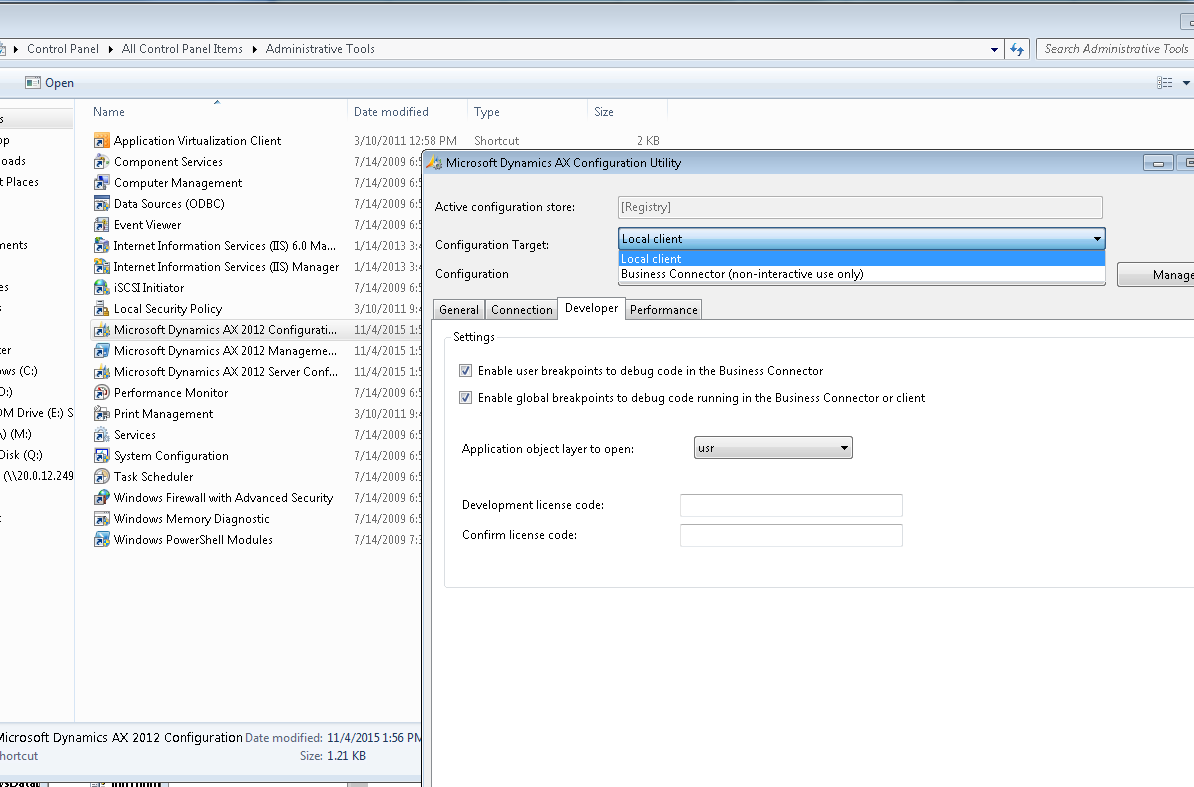
  • Dynamics AX client configuration -> configuration target , select business connector and Local client both one by one and check the Enable user breakpoint to debug .. checkbox and Enable global breakpoint to debug .. checkbox


Debbuger is coming blank or Its showing No debugger has installed.

There are many reasons behind this error.


  • User is not in the list of Microsoft Dynamics Debugger Group. control panel -> user account -> change user account type-> select advance tab -> clcik advance button-> select group -> double click on microsoft Dynamics AX Debugger group-> add user.


  • User is not in the list of Administrator Group. control panel -> user account -> change user account type-> select advance tab -> clcik advance button-> select group -> double click on Administrator group-> add user.
  • UAC should be disable. control panel -> User account -> User Account control setting -> select never notify.

  • Run as administrator while open AX. right click ax clinet and select run as administrator.
  • Install the Debbuger from the AX setup file.
  • Dynamics AX server configuration, check the Enable Breakpoint to debug X++ code running and Enable Global breakpoint


  • Dynamics AX client configuration -> configuration target , select business connector and Local client both one by one and check the Enable user breakpoint to debug .. checkbox and Enable global breakpoint to debug .. checkbox